
삼성, 샤오미, OPPO 휴대폰(안드로이드)에서 APK 설치 권한을 활성화하는 방법

Installing APK files from outside the Google Play Store is a common practice when users want access to apps that are not officially available on Google Play. However, Android devices block these installations by default for security reasons.
In this article, you’ll learn how to enable APK installation permissions step by step on Samsung, Xiaomi, and OPPO smartphones, using the latest Androi
What Is “Install Unknown Apps” on Android?
“Install unknown apps” is a security feature in Android that prevents apps from being installed from sources outside the Google Play Store.
Important to know:
- There is no global “Unknown Sources” switch on modern Android
- You must grant permission per app (browser or file manager)
- This helps protect your phone from malware
How to Enable APK Installation on Samsung Phones (One UI)
Samsung


Applicable to:
- Samsung Galaxy S / A / Note / Z series
- One UI on Android 10+
Step-by-Step Instructions:
- Open Settings
- Tap Biometrics and Security (or Security)
- Select Install unknown apps
- Choose the app you used to download the APK
(Chrome, Samsung Internet, or File Manager) - Enable Allow from this source
You can now open the APK file and install it normally.
How to Enable APK Installation on Xiaomi Phones (MIUI / HyperOS)
Xiaomi


Applicable to:
- Xiaomi, Redmi, POCO devices
- MIUI or HyperOS (Android 10+)
Step-by-Step Instructions:
- Open Settings
- Go to Privacy & Security 또는 Security
- Tap Install unknown apps
- Select the browser or 파일 관리자
- Enable Allow from this source
If installation is blocked:
- Go to Security
- Temporarily disable MIUI Security Scan
- Re-enable it after installation
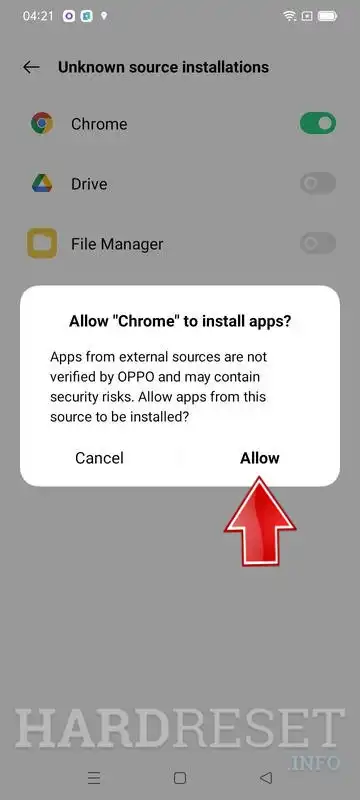
How to Enable APK Installation on OPPO Phones (ColorOS)
OPPO


Applicable to:
- OPPO Reno, A series, Find series
- ColorOS on Android 10+
Step-by-Step Instructions:
- Open Settings
- Tap Privacy
- Select Install unknown apps
- Choose your browser or 파일 관리자
- Enable Allow from this source
On newer ColorOS versions, the path may be:
Security → External app installation
Common APK Installation Issues and Solutions
“App Not Installed” Error
Possible causes:
- Corrupted APK file
- App not compatible with your Android version
Solution: Re-download the APK or use a newer version.
Google Play Protect Blocks Installation
- Open Google Play Store
- Tap your profile icon
- Select Play Protect
- Tap ⚙️ Settings
- Turn off Scan apps with Play Protect
You can turn it back on after installing the APK.
Can’t Find “Unknown Sources”
✔ This is normal on modern Android
✔ Permissions are managed per app, not globally
Security Tips When Installing APK Files
✔ Download APKs only from trusted websites
✔ Enable permission only for the specific app you use
✔ Disable the permission after installation if not needed
✔ Avoid granting unnecessary permissions (SMS, Contacts, Accessibility)
✔ Use antivirus or built-in security tools if available
Conclusion
By following this guide, you can safely enable APK installation permissions and install apps outside the Google Play Store on:
- Samsung phones (One UI)
- Xiaomi phones (MIUI / HyperOS)
- OPPO phones (ColorOS)
This method works on most modern Android devices and ensures both convenience and security.

아직 댓글이 없습니다 :(